

Orders $25+ ships for free!

Earn GEARit rewards on every purchase

30-day money-back guarantee

lifetime warranty
Sort by:


Quick view
$6.99From $4.79
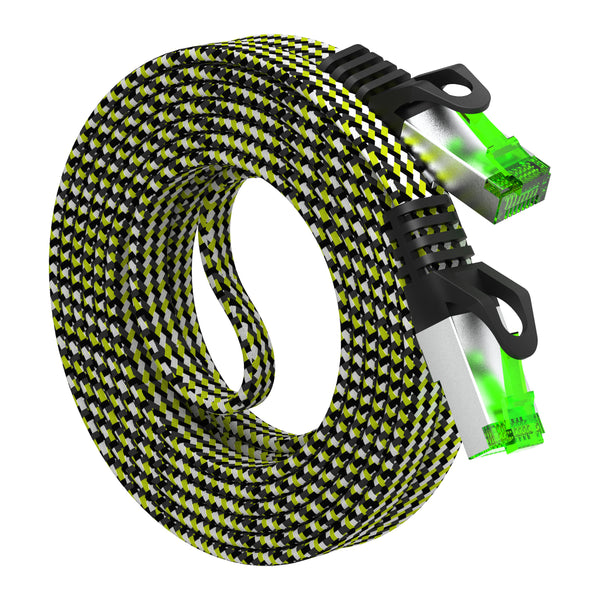
Cat 7 Ethernet Cable 10 Feet - 32 AWG Flat Patch Cable - Nylon Braided
CAT7 HIGH SPEED ETHERNET CABLE - Cat7 cable provides performance up to 600 MHz, 10GB transfer rates and supports Fast Ethernet (10Base-T, 100Base-T), Gigabit Ethernet (1000Base-T/1000Base-TX) and 10-Gigabit Ethernet (10GBase-T)...
$4.07
with code
GET20

Quick view
$20.99From $15.00
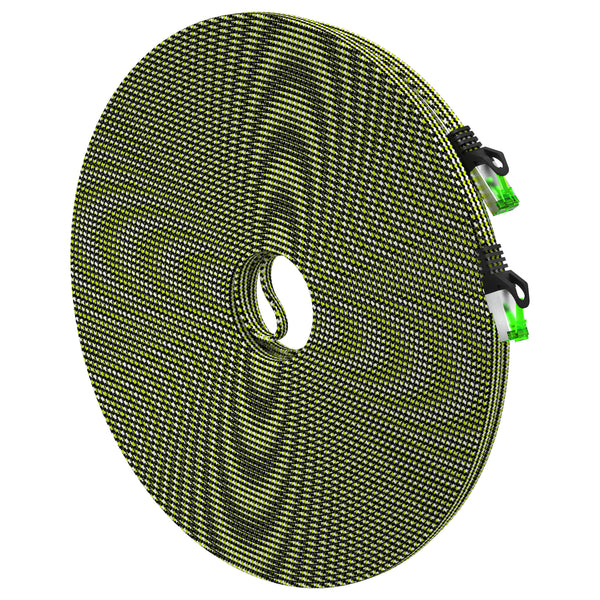
Cat 7 Ethernet Cable 100 Feet - 32 AWG Flat Patch Cable - Nylon Braided
CAT7 HIGH SPEED ETHERNET CABLE - Cat7 cable provides performance up to 600 MHz, 10GB transfer rates and supports Fast Ethernet (10Base-T, 100Base-T), Gigabit Ethernet (1000Base-T/1000Base-TX) and 10-Gigabit Ethernet (10GBase-T)...
$12.75
with code
GET20


Quick view
$8.99From $6.40
Cat6 Ethernet Patch Cable (2-Pack) - CCA Network Cord - UTP, Black & Blue
CAT6 CCA ETHERNET CABLE - This Cat6 CCA cable is perfect for creating up to a 10 gigabit network in your home or office (10GBASE-T), and will also support gigabit...
$5.44
with code
GET20


Quick view
$12.99From $9.68
Cat6 Ethernet Patch Cable - CCA Network Cord - UTP, Black
CAT6 CCA ETHERNET CABLE - This Cat6 CCA cable supports up to 10 gigabit networks (10GBASE-T), gigabit networks (1000BASE-T), Fast Ethernet (100BASE-Tx), and 10BASE-T. Designed with CCA materials for high...
$8.23
with code
GET20


Quick view
$13.99From $9.84
Cat6 Ethernet Patch Cable - CCA Network Cord - UTP, Blue
CAT6 CCA ETHERNET CABLE - This Cat6 CCA cable supports up to 10 gigabit networks (10GBASE-T), gigabit networks (1000BASE-T), Fast Ethernet (100BASE-Tx), and 10BASE-T. Designed with CCA materials for high...
$8.36
with code
GET20


Quick view
$15.99From $11.56
Cat6 Ethernet Patch Cable - CCA Network Cord - UTP, White
CAT6 CCA ETHERNET CABLE - This Cat6 CCA cable is perfect for creating up to a 10 gigabit network in your home or office (10GBASE-T), and will also support gigabit...
$9.83
with code
GET20


Quick view
$26.99From $20.98
CAT6 Shielded EtherCON Cable for Pro Audio, Black
$17.83
with code
GET20


Quick view
$35.99From $27.98
CAT6 Shielded EtherCON Cable for Pro Audio, Blue
$23.78
with code
GET20

Quick view
$14.99From $10.53
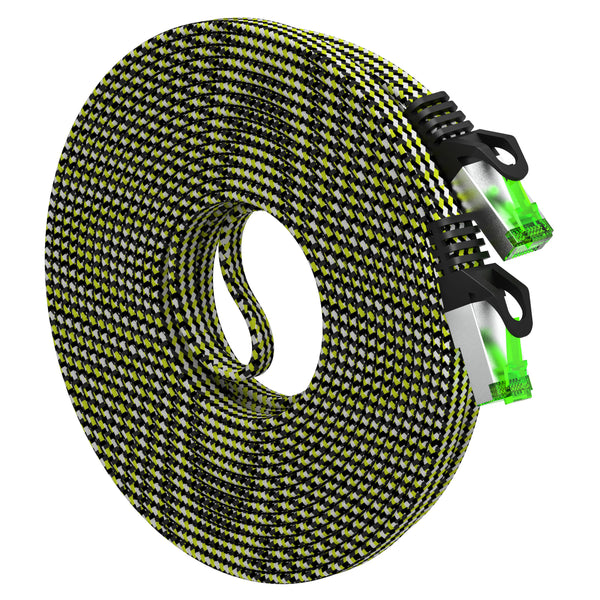
Cat7 Ethernet Cable 25 Feet - 32 AWG Flat Patch Cable - Nylon Braided
CAT7 HIGH SPEED ETHERNET CABLE - Cat7 cable provides performance up to 600 MHz, 10GB transfer rates and supports Fast Ethernet (10Base-T, 100Base-T), Gigabit Ethernet (1000Base-T/1000Base-TX) and 10-Gigabit Ethernet (10GBase-T)...
$8.95
with code
GET20

Quick view
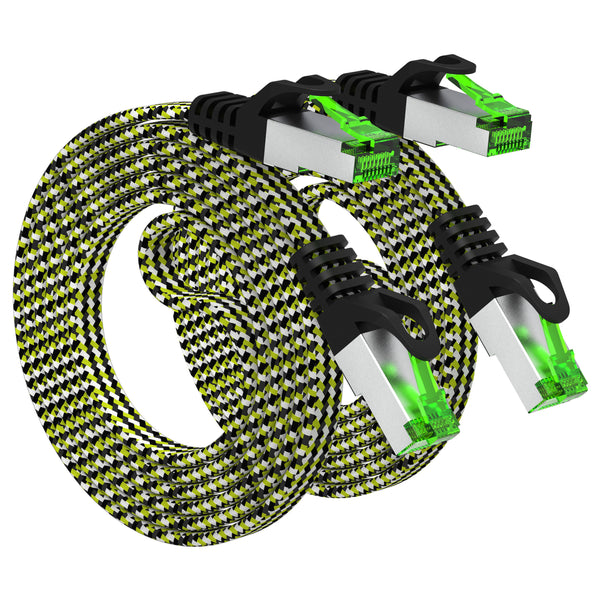
$8.99From $6.38
Cat7 Ethernet Cable 3 Feet - 32 AWG Flat Patch Cable - Nylon Braided
CAT7 HIGH SPEED ETHERNET CABLE - Cat7 cable provides performance up to 600 MHz, 10GB transfer rates and supports Fast Ethernet (10Base-T, 100Base-T), Gigabit Ethernet (1000Base-T/1000Base-TX) and 10-Gigabit Ethernet (10GBase-T)...
$5.42
with code
GET20

Quick view
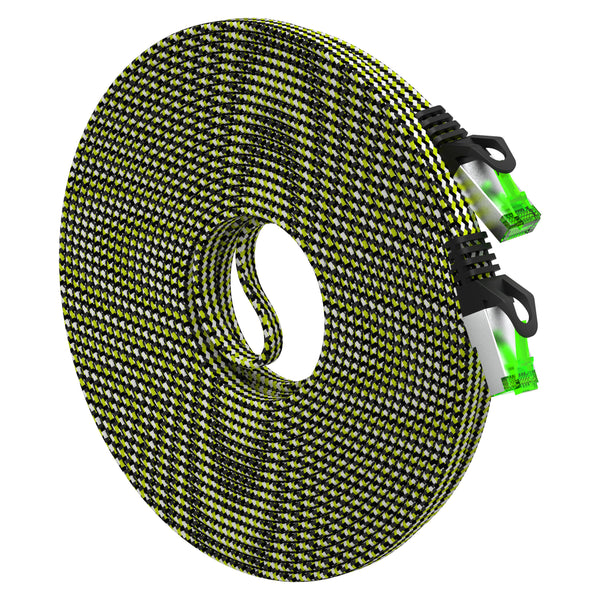
$7.99From $5.51
Cat7 Ethernet Cable 33 Feet - 32 AWG Flat Patch Cable - Nylon Braided
CAT7 HIGH SPEED ETHERNET CABLE - Cat7 cable provides performance up to 600 MHz, 10GB transfer rates and supports Fast Ethernet (10Base-T, 100Base-T), Gigabit Ethernet (1000Base-T/1000Base-TX) and 10-Gigabit Ethernet (10GBase-T)...
$4.68
with code
GET20

Quick view
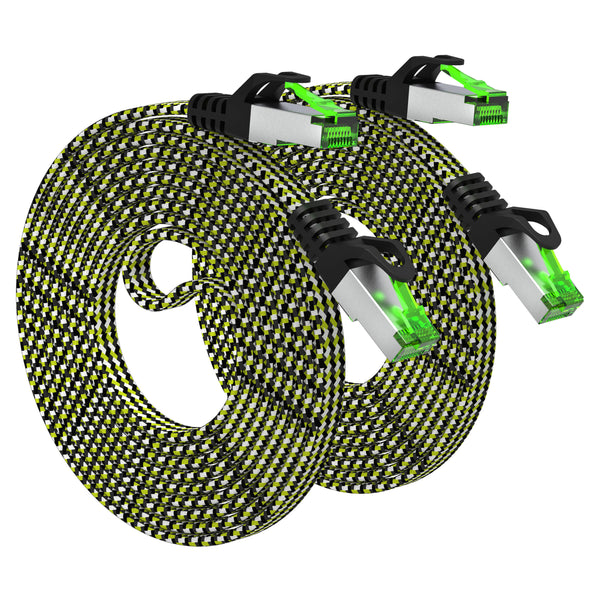
$8.99From $5.68
Cat7 Ethernet Cable 5 Feet - 32 AWG Flat Patch Cable - Nylon Braided
CAT7 HIGH SPEED ETHERNET CABLE - Cat7 cable provides performance up to 600 MHz, 10GB transfer rates and supports Fast Ethernet (10Base-T, 100Base-T), Gigabit Ethernet (1000Base-T/1000Base-TX) and 10-Gigabit Ethernet (10GBase-T)...
$4.83
with code
GET20

Quick view
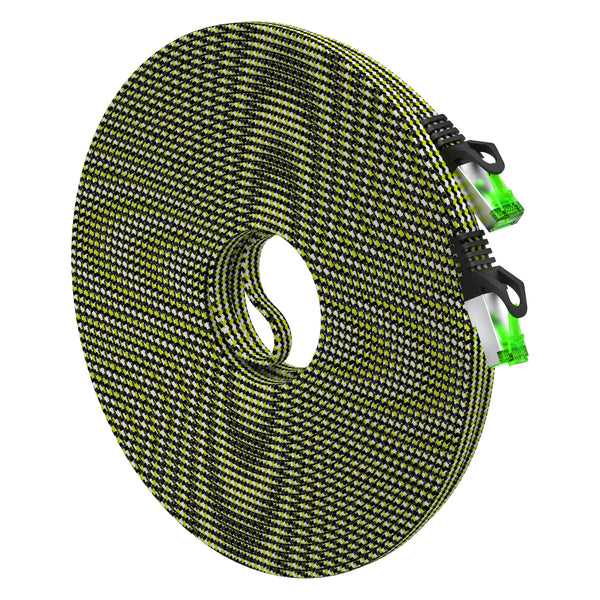
$26.99From $19.99
Cat7 Ethernet Cable 50 Feet - 32 AWG Flat Patch Cable - Nylon Braided
CAT7 HIGH SPEED ETHERNET CABLE - Cat7 cable provides performance up to 600 MHz, 10GB transfer rates and supports Fast Ethernet (10Base-T, 100Base-T), Gigabit Ethernet (1000Base-T/1000Base-TX) and 10-Gigabit Ethernet (10GBase-T)...
$16.99
with code
GET20

Quick view
$7.99From $5.33
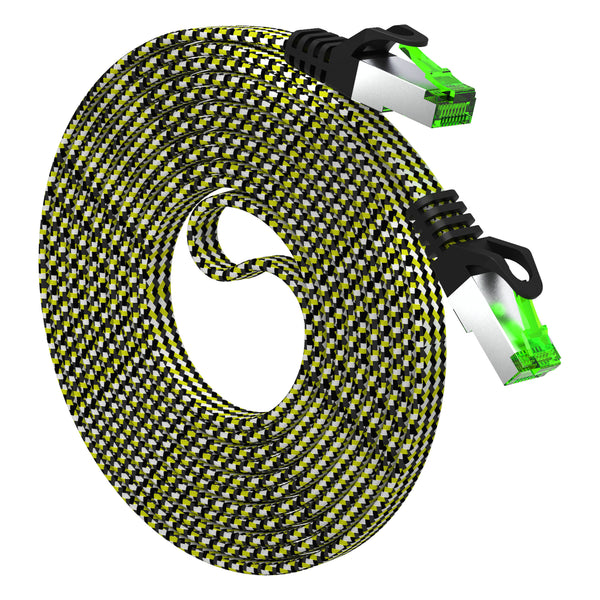
Cat7 Ethernet Cable 7 Feet - 32 AWG Flat Patch Cable - Nylon Braided
CAT7 HIGH SPEED ETHERNET CABLE - Cat7 cable provides performance up to 600 MHz, 10GB transfer rates and supports Fast Ethernet (10Base-T, 100Base-T), Gigabit Ethernet (1000Base-T/1000Base-TX) and 10-Gigabit Ethernet (10GBase-T)...
$4.53
with code
GET20

Quick view
$109.99From $37.98
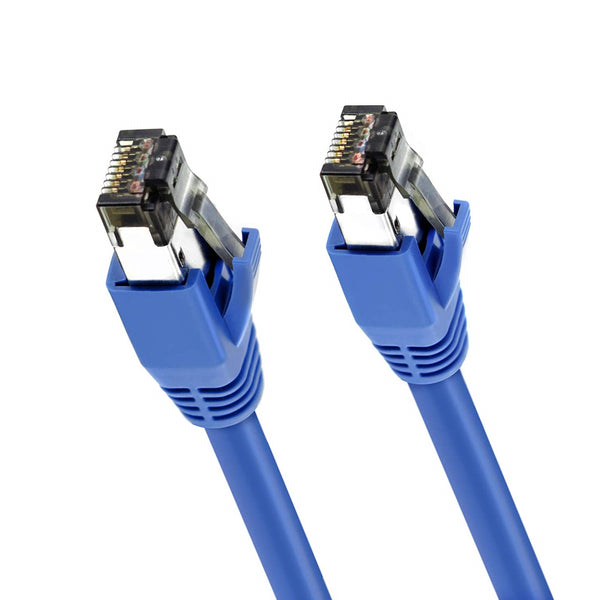
Cat8 Ethernet Patch Cable - S/FTP - 24 AWG - 10Gbps/25Gbps/40Gpbs, 2GHz 2000Mhz, Blue
Descriptions GearIT Ultra High Performance Cat8 Patch Cables The Most Advance & Powerful Ethernet Cable GearIT Cat8 (Category 8) Ethernet Cable is the most powerful, advanced Ethernet cable available and...
$32.28
with code
GET20


