

If your Ethernet connection is slow, dropping, or dead, this guide helps you quickly isolate the fault, validate it with the right tests, and choose a reliable fix. Whether you manage a home lab, a small office, or an AV rack, these steps get you from symptom to solution fast.
Start Here: Match the Symptom to the Likely Cause
- No link light at all: Suspect a bad patch cable, miswired RJ45, unpowered switch/port, or damaged jack.
- Link flaps on and off: Look for loose connectors, intermittent cable breaks, excessive bend/kinks, or EMI near power cables.
- Very slow speeds or buffering: Check for duplex/speed mismatch, older cable category limits, or pair untwist near the plug causing crosstalk.
- PoE device won’t power: Verify PoE class, cable copper quality, total run length, and injector/switch watt budget.
Step‑by‑Step Test Workflow
- Visual inspection (60 seconds): Confirm plugs latch firmly, boots aren’t cracked, and there’s no crushing or water ingress. Avoid tight 90° bends; maintain gentle curves.
- Swap test: Replace the suspect patch with a known‑good Cat6 Ethernet Patch Cable. If link restores, the original patch is faulty or under‑spec.
- Continuity and pinout test: Use a basic cable tester to confirm straight‑through wiring and pair order per T568A or T568B from end to end.
- Port isolation: Move the same cable to a different switch or wall jack. If it works elsewhere, the original port or jack needs re‑termination or replacement.
- Speed/duplex verification: Set both ends to Auto‑Negotiation; mismatched manual settings often cause slow/erratic throughput.
- PoE validation (if applicable): Check the PSE’s watt budget and cable type. Prefer pure copper conductors for PoE, long runs, and cameras.
Physical Layer Pitfalls You Can Fix Fast
1) Miswired or inconsistent RJ45 pinouts
Ensure both ends use the same standard (T568A or T568B). Mixed ends create a crossover and may fail depending on the devices. Keep twists to within 0.5 inch of the connector to minimize crosstalk.
- Test it: A cable tester should report 1‑to‑1, 2‑to‑2, … 8‑to‑8 with no splits or shorts.
- Fix it: Re‑terminate with a quality crimp tool and new RJ45 plug, following the color code precisely.
2) Cable category limits and copper quality
Older or under‑spec cable can bottleneck new gear. Cat5e supports up to gigabit over typical lengths, while Cat6 is a stronger choice for busy LANs and PoE. Pure bare copper typically performs and powers devices more reliably than economy alternatives, especially on longer runs.
- Test it: If a known‑good Cat6 patch restores performance, upgrade the failing segment.
- Fix it: Replace with a Cat6 Ethernet Patch Cable or Outdoor/Direct‑Burial Ethernet Cable where appropriate.
3) Bend radius, strain, and installation mistakes
Sharp bends, staples, or heavy objects can deform pairs and raise error rates.
- Test it: Gently straighten the run and recheck link stability and errors.
- Fix it: Route with wide curves, use strain relief boots, and keep low‑voltage data separate from AC power.
4) Environmental and EMI issues
Running Ethernet alongside power cords, ballasts, or motors can inject noise.
- Test it: Temporarily re‑route a short patch away from interference and observe link quality.
- Fix it: Maintain separation from power, avoid coiling excess cable, and use quality cables with tight pair twists.
How to Verify RJ45 Pinout the Right Way
- Know the standards: T568A and T568B define the color order of the eight conductors. Consistency is the key to passing continuity tests and achieving stable links.
- Use a cable tester: Check for continuity, opens, shorts, and split pairs. Basic testers are ideal for field checks; advanced analyzers can measure performance margins.
- Re‑crimp if needed: If any pin fails continuity, cut, re‑strip, keep twists tight, and crimp a fresh plug.
PoE‑Specific Troubleshooting
- Confirm PoE class and budget: Ensure the injector/switch wattage can supply all connected devices simultaneously.
- Mind the copper and distance: For cameras, APs, and phones on long runs, choose robust cable and minimize total length and patch transitions to reduce voltage drop.
- Test without PoE: If link is stable with PoE off but fails under power, the issue is likely marginal cable or budget.
Outdoor and In‑Wall Considerations
- Outdoor/direct‑burial: Use weather‑resistant cable for exterior or underground paths to prevent moisture‑related failures.
- Plenum/risers (U.S.): In commercial and multi‑story installs, select cable jackets that align with local building codes.
Quick Diagnostics Checklist
- 1. Known‑good patch test.
- 2. Cable tester: 1‑to‑1 through 8‑to‑8, no split pairs.
- 3. Swap port/jack; re‑seat firmly until the latch clicks.
- 4. Auto‑Negotiation on both ends; avoid forced mismatches.
- 5. Separate data from power; uncoil excess cable.
- 6. Validate PoE load and cable quality if using powered devices.
When to Repair vs. Replace
- Repair: Isolated bad termination, minor kink near the plug, or single failed pinout—re‑crimp and retest.
- Replace: Multiple faults along the run, water ingress, crushed cable, or recurring errors under PoE load—install a new, quality patch or bulk run.
Recommended Upgrades
- Cat6 Ethernet Patch Cable (snagless, molded strain relief) for reliable, everyday LAN performance.
- Cat5e Ethernet Patch Cable for budget‑friendly gigabit segments.
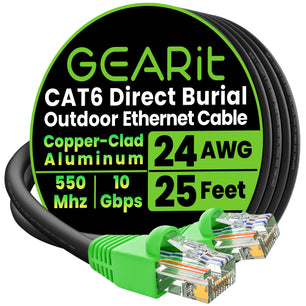
- Outdoor/Direct‑Burial Ethernet Cable for exterior cameras, sheds, and outbuildings.
FAQ
How do I know if my Ethernet cable is bad?
Swap with a known‑good patch and run a continuity/pinout test. If the problem disappears with the new cable or the tester shows opens/shorts/split pairs, replace the cable.
What’s the difference between T568A and T568B—does it affect speed?
They’re just different color orders. Speed and reliability depend on using the same standard on both ends and maintaining pair twists into the connector.
Can a Cat5e cable cause slow speeds on modern gear?
Cat5e supports 1 Gbps under typical conditions. For higher headroom, heavy PoE, or noisy environments, Cat6 is a practical upgrade.
Why does my PoE camera reboot randomly?
Likely low voltage at the device under load. Check total PoE watt budget, run length, and cable construction. Upgrading to a robust, pure‑copper cable and minimizing patch transitions often fixes it.
My link light is on but the network is still slow—what now?
Verify Auto‑Negotiation on both ends, replace the patch with a known‑good Cat6, and check for EMI or tight bends. If issues persist, test a different port or switch.
Ready to Restore Rock‑Solid Ethernet?
Start with a fast swap to a known‑good patch and a simple continuity test—then upgrade weak links. Need dependable cables now? Shop GearIT Cat6 Ethernet Patch Cables, explore Cat5e Patch Cables, or choose Outdoor/Direct‑Burial Ethernet Cable for tough installs.